Orders
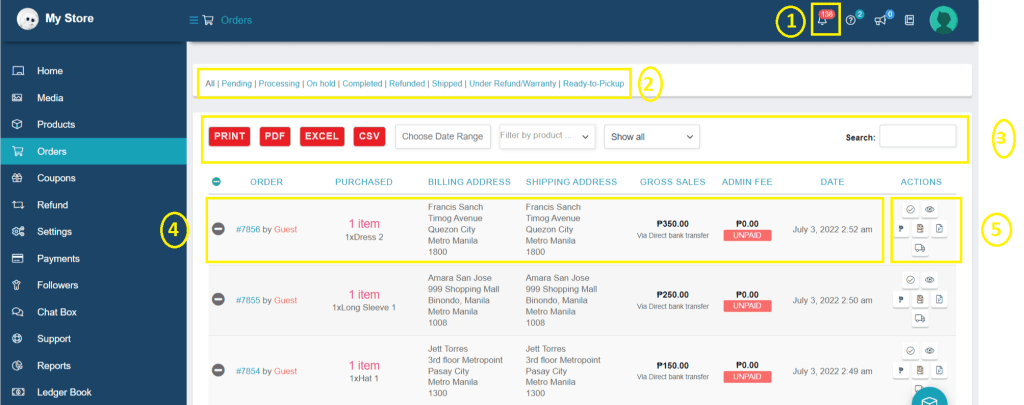
You will receive notifications whenever you make a sale, and you will be able to see the order status, keep a note, and much more. To navigate on my account, go to Store Dashboard > Orders.
- Order Notification
- Order Statuses
- Filter of Orders
- Customer Info
- Actions
Order Notification
Aside from the Notification Board icon, an email notification is sent every time a customer orders a product from your store. After placing an order, A-buy will immediately send a no-reply message.
Order Statuses
To manage orders more easily, depending on the status of the customer’s order.
- Pending: orders which haven’t been paid by the customer.
- Processing: orders that have already been paid by the customers. This is the only order status you need to change status to continue on the next process.
- On Hold: orders that need to be verified first by A-buy before processing the order.
- Completed: orders with completed transactions.
- Refunded: orders that have been requested for a refund.
- Shipped: orders after adding the tracking information.
- Under Refund/Warranty: This is optional. Orders that you want to put first on a warranty or under refund before completing the orders.
- Ready-to-Pickup: This is optional. You can change the order status that customers who choose to pick up their orders through your physical store.
Reminder: Use order status correctly; if customers complain about their orders due to incorrect order status, you will be penalized.
Please watch the video tutorial for an example of how to change status:
Filter of Orders
To quickly find the specific order you need and download it whenever you need it.
Customer’s Info
To view your customer’s summary information, including an overview of charges and where to deliver orders.
Admin Fee – it is the fee of 4.5% + 20 pesos from A-buy for every successful transaction in your store.
Gross Sale – total charge of orders including shipping fee plus the admin fee.
Date– Time that customer order the product in your store.
Actions
To view the complete order information, fees, and charges, and to make changes to the order’s current status once processed.
Mark as Complete – once customers received the order with no issues at all on their orders you may now mark as complete the order.
Reminder: It would take a 7 calendar days threshold from the time you mark as complete the order before requesting your earnings. Cut off is every 2nd week of Friday.
View Details – to view the order’s complete information and make any necessary changes. For more information, please see the View Details tab.
Commission Invoice- it includes the total charge of the order, shipping, and charges from A-buy per order.
Store Invoice – seller and customer will get a copy of the receipt for their orders.
Download Packaging Slip – It includes SKU numbers, weights, dimensions, and the number of units that are used to determine what inventory needs to be sent out to accurately complete an order.
Mark Shipped – you will need to enter the tracking information.
Order Details
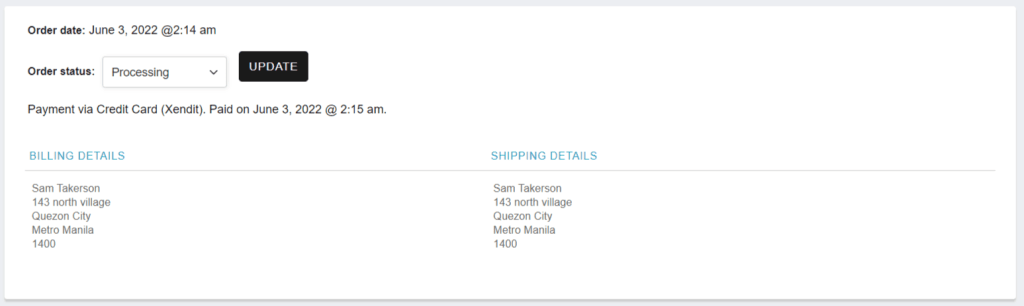
You can see the current status of the order and you may download the store invoice, packing slip, and commission invoice here

Order Status
You can make changes to the current status by clicking the drop-down menu and then clicking update.
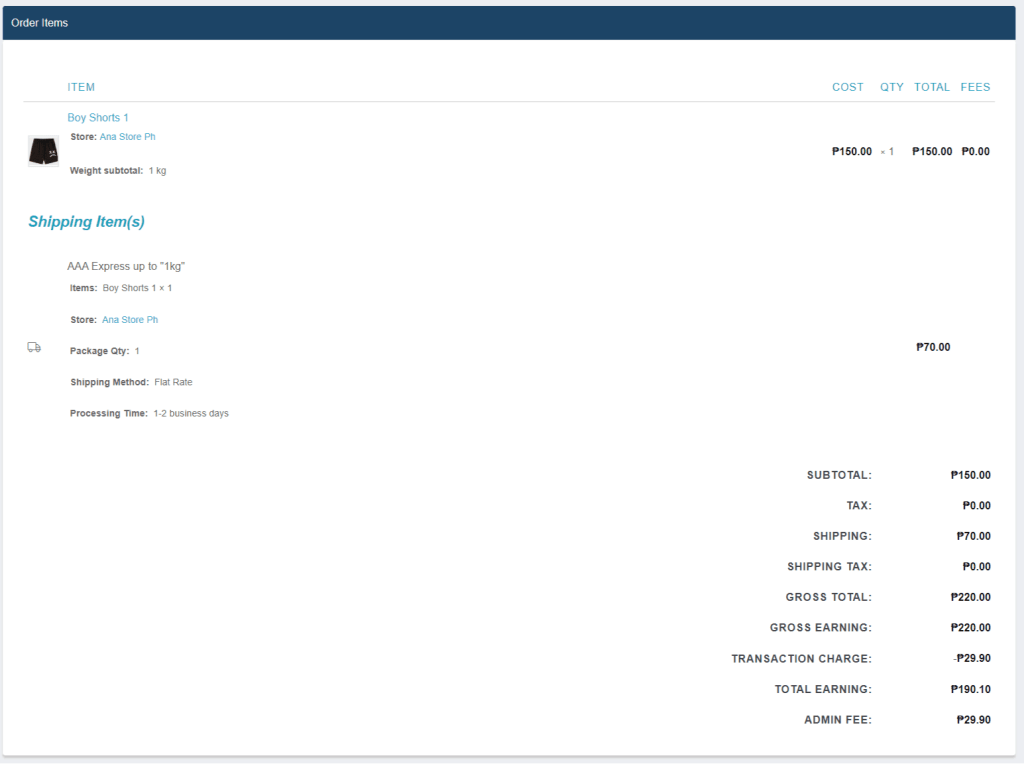
Order Items
You can see here the breakdown from gross earnings to total earnings.
Shipment Tracking
You can add the shipping information by clicking the truck icon and then clicking submit. Same with Mark as Shipped.

Order Notes
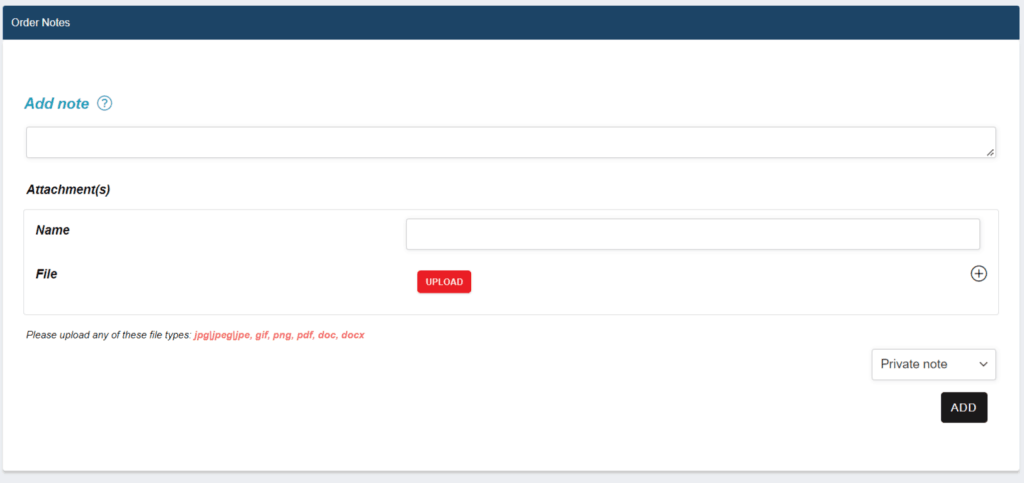
You can send additional notes or attachments to your customer by choosing note to customer then click add or if you’ll send a file, please choose a file by clicking upload and choose again note to customer then click add.
- Note to customer: Customer will receive a note on their order’s tab and email.
- Private note: Only seller can see it under order notes.